
 How to record a Teams meeting
 Deepu Nair· CEO, Sunnyside AIUpdated 12 Nov 20264 min
The short answer
In the Teams meeting, select More actions, then Record. You need a work or school licence with recording turned on by IT, and guests cannot record. Teams tells everyone when it starts, and saves the file to the organizer's OneDrive or the channel's SharePoint. For a way with no bot, Sunnyside AI listens on your own computer.
The steps
- 01Join as someone from the organizer's organizationGuests and people from other organizations cannot record a meeting.
- 02Open More actionsIt is the three dots in the meeting controls.
- 03Select RecordPick the spoken language. Choose Audio only if you do not want video.
- 04Select ConfirmTeams tells everyone in the meeting that recording has started.
- 05Stop the recordingMore actions, then Recording, then choose Recording again to stop it. It also stops when everyone leaves.
- 06Find the fileA link shows in the meeting chat. The file is in the organizer's OneDrive, or the channel's SharePoint for a channel meeting.
- 01Install the app on your own computerSunnyside AI runs on a Mac or Windows computer.
- 02Sign in onceUse your work email.
- 03Join the Teams meeting, even as a guestSunnyside AI does not ask Teams for permission. It hears what your computer plays.
- 04Leave the Teams settings aloneNo admin switch, no licence check and no new name in the meeting.
- 05Tell people you take notesSay it at the start, then ask if anyone minds.
- 06Read the notes after the callThe transcript and notes are in the app when the call ends.
Which way to choose
Teams records well when you organize the meeting. When you are a guest, or IT has it switched off, you need another way.
| Compared on | Teams recording | A bot note taker | Sunnyside AI |
|---|---|---|---|
| Who can start it | Someone from the organizer's organization, with the licence and with IT having turned recording on | Whoever invites the bot | You, whoever organizes the meeting |
| Where it ends up | The organizer's OneDrive, or the channel's SharePoint | In the bot service's account | In your Sunnyside AI app |
| Works as a guest | No | Depends on the meeting's lobby and admit rules | Yes, because it runs on your computer |
| What you get | A video file with the transcript if you turn it on | A transcript and a summary | Notes, a transcript and a follow-up draft |
Limits
- Sunnyside AI works from audio, so you get notes and a transcript, not a video file.
- It runs on a Mac or Windows computer, not on a phone or a tablet.
- It is built for sales calls, not lectures or interviews.
- It does not replace telling people. Say at the start of the call that you take notes.
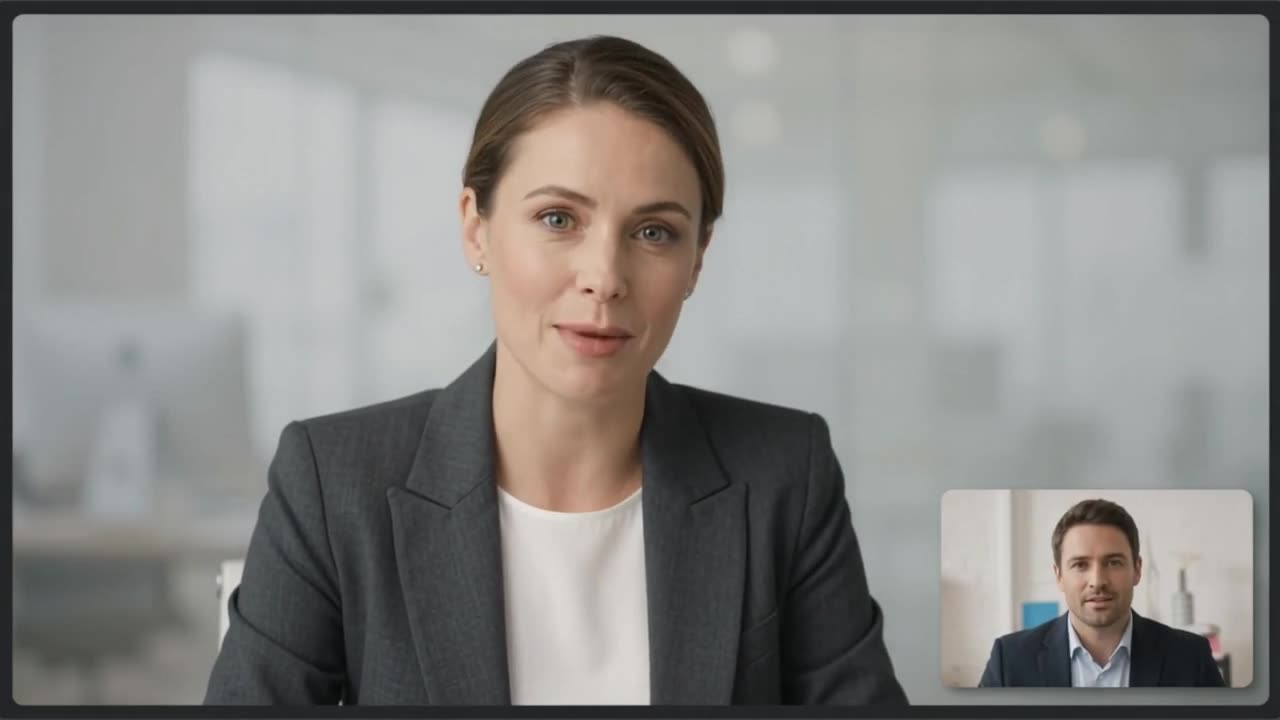 Claire Dunn · Meridian Group

On a real call, this is what you would see
Sunnyside AI writes the notes while the call is fresh, and no bot joins.
Try Sunnyside AI freeQuestions people ask
Who can record a Teams meeting?
Someone from the organizer's own organization who has the licence, when IT has turned recording on. Guests, anonymous users and people from other organizations cannot.
Where does the Teams recording go?
To the organizer's OneDrive for a normal meeting, or to the channel's SharePoint site for a channel meeting. A link also appears in the chat.
What does Teams leave out of a recording?
Whiteboards and annotations, shared notes, content from apps, and video beyond four streams are not captured.
Is it legal to record a Teams meeting?
It depends on where each person is. Tell people at the start of the call and ask.
- Microsoft: start, stop and find meeting recordings in Teams, checked 12 Nov 2026